Android Auto for BMW NBT EVO: Install It From Your Browser
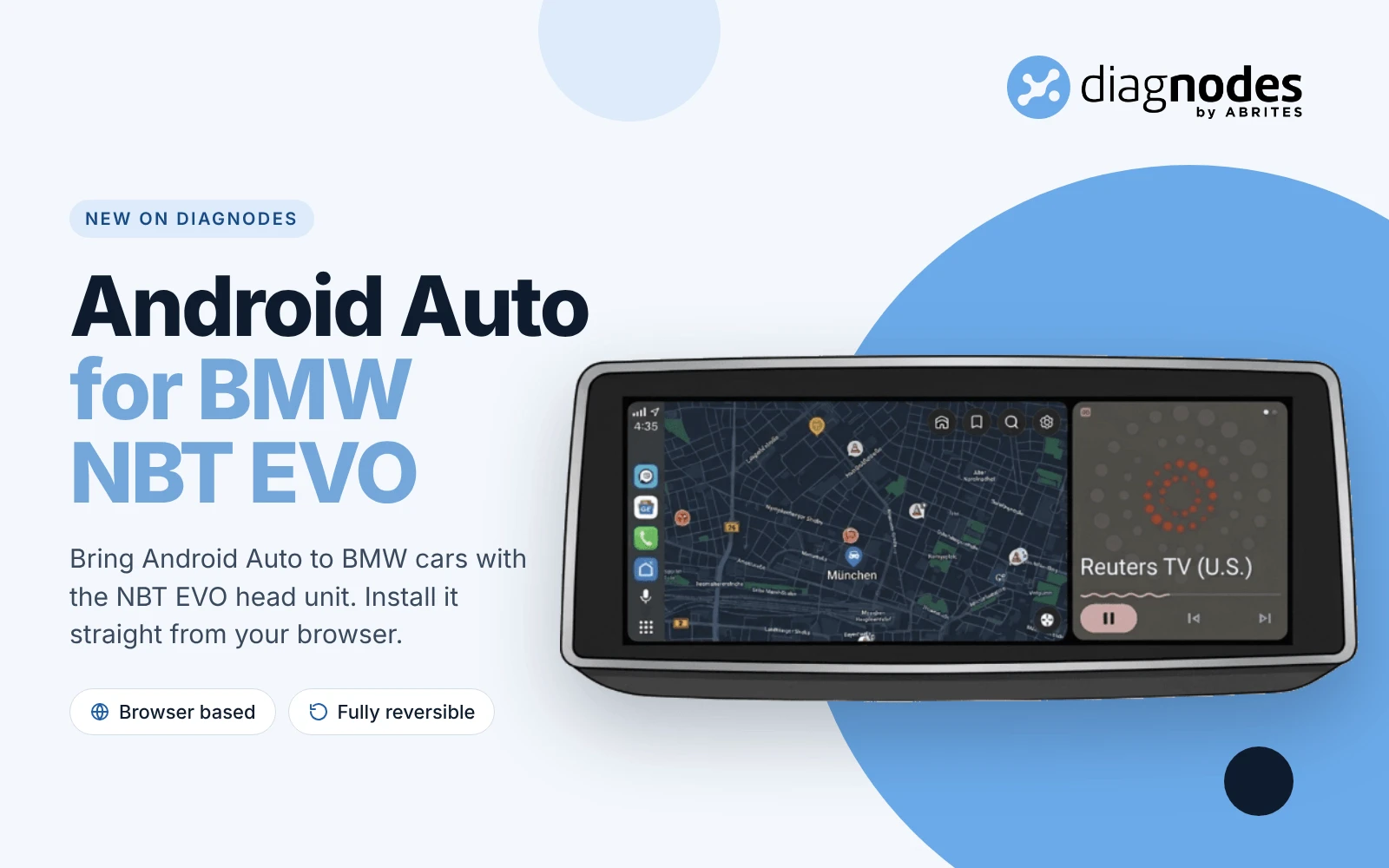
Google Maps on the big screen, Spotify in the dash, calls and messages without touching your phone. Android Auto is now available for BMW cars with the NBT EVO head unit, and you install it with DiagNodes straight from your browser. No new head unit, no retrofit box, no extra hardware in the car.
Your Phone's Apps on Your BMW's Screen
Android Auto brings the apps you use every day to the NBT EVO display:
- Navigation: Google Maps or Waze with live traffic.
- Music and podcasts: Spotify, YouTube Music and the rest of your favourite apps.
- Calls and messages: make calls and hear your messages while your hands stay on the wheel.
- Voice control: ask Google Assistant for directions, music or a call.
Install in One Click, Remove Anytime
- Install Android Auto: DiagNodes uploads the Android Auto app and its service to the head unit. The NBT EVO restarts when the upload is done.
- Uninstall Android Auto: removes the files and reverts the installation. The NBT EVO restarts when the removal is done.
Nothing is permanent. If you sell the car or change your mind, one click takes the head unit back to how it was.
Connect Your Phone in Four Steps
- On the head unit, go to Media/Radio.
- Click Android Auto and select Start Android Auto.
- Go back to Manage Mobile Devices and select Connect new device.
- Select Bluetooth audio and follow the steps on the head unit.
Tip: if Bluetooth audio is not in the list, A2DP is not coded on the head unit. Code A2DP first with BMW Coding in DiagNodes, and Android Auto is ready to go.
What You Need
An Ethernet (ENET) cable, the DiagNodes Companion App on Windows, macOS or Android, and 35 tokens. See how the connection works.
More for Your NBT EVO
Bring Android Auto to Your BMW
Connect with an Ethernet cable, open BMW in DiagNodes and choose Android Auto. All the details are on the Android Auto for BMW NBT EVO page.